Hey everyone, welcome back to TechRealTime!
In today’s quick tip, I’m going to walk you through how to take a project from Google AI Studio and actually put it live on the internet. It sounds technical, but trust me, it’s super simple—and free—thanks to Netlify.
Let’s get straight into it.
Step 1: Download Your Project from Google AI Studio
First, head over to Google AI Studio and sign in to your account.
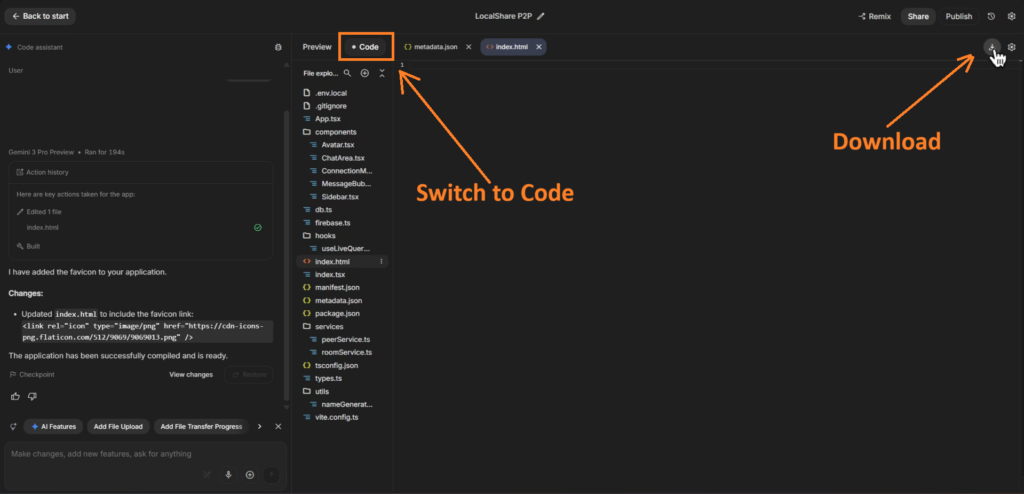
Once you’re in, go to the Build section and open whichever project you want to deploy online. Once your project is open, look for the Code tab (usually near the top or side) and click it. This switches the view to show you all the code files behind your project.
Now, in that code view, look at the top right corner. You’ll see a small download icon. Click it. That’s it—Google will package your entire project into a zip file and download it to your computer.
Step 2: Head Over to Netlify
Now, open a new tab in your browser and search for Netlify. Open the first link that pops up (Click Here to Visit: www.netlify.com).
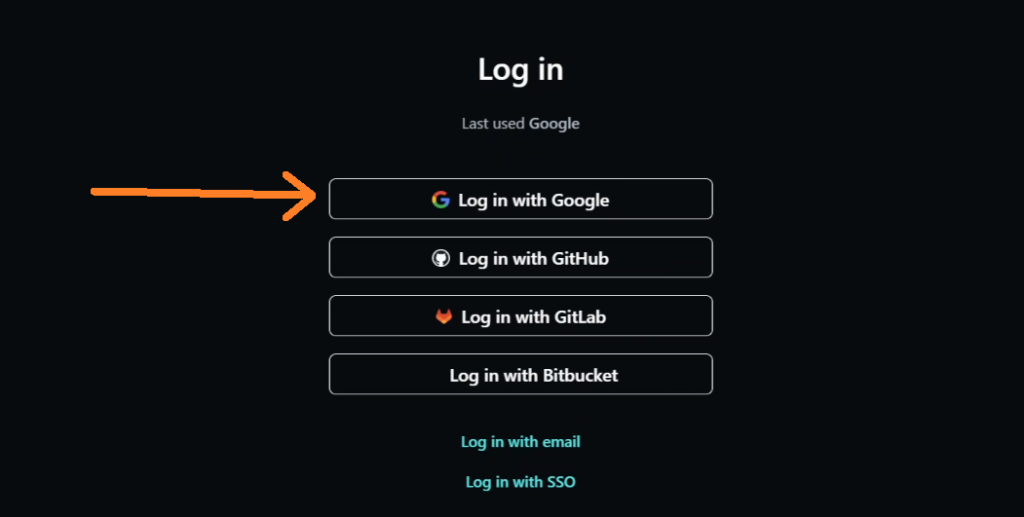
On the Netlify homepage, you’ll see a Login or Sign up button. Click it. I personally recommend logging in with your Google account—it’s the quickest way to get in without filling out forms.
Step 3: Deploy with a Simple Drag and Drop
Once you’re logged in, you’ll land on your Netlify dashboard. This is where the magic happens.
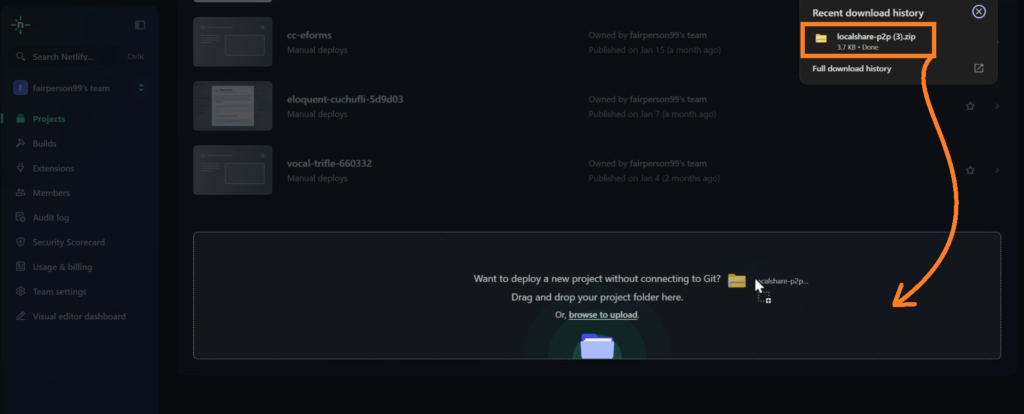
You’ll see a clear area in the middle of the screen that says something like “Drag and drop your site folder here.” You can literally drag the exact Google AI Studio zip file you just downloaded and drop it right there.
Netlify will immediately start processing it. It will upload the files, run the necessary builds, and handle all the behind-the-scenes stuff (like adding the required npm files) automatically. You don’t need to worry about a thing.
After a minute or so, your app will be live!
Step 4: Get Your Link and Customize
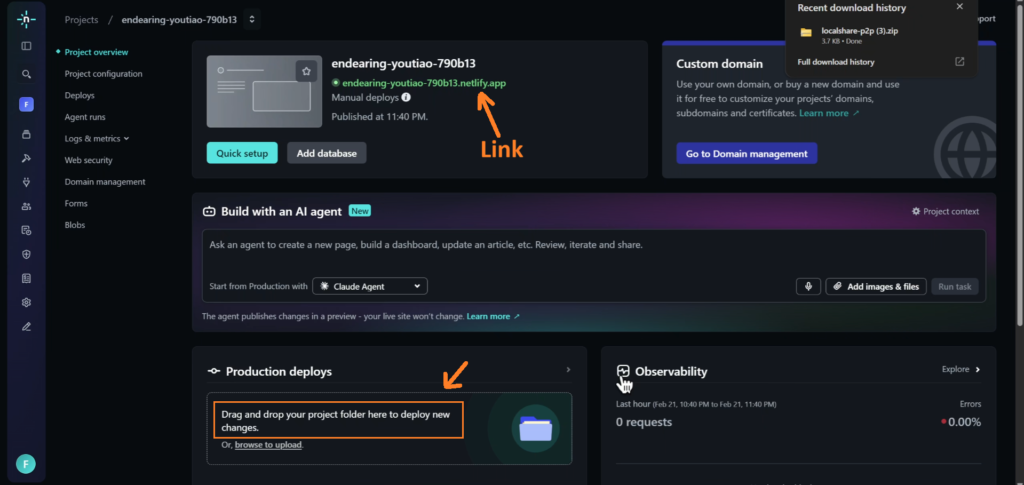
Once it’s done, Netlify will provide you with a random link where your app is live. You can visit it right away and share it with anyone.
If you want a cleaner address, go to the Site settings or Domain settings (often found in the “Quick settings” section). From there, you can customize the site name to something more memorable, provided it’s available.
Bonus: How to Handle Updates
Made some changes to your project in Google AI Studio? No problem. Just download the updated zip file again.
Come back to the same spot on your Netlify dashboard and drag and drop the new file. It will automatically overwrite the old project with your updated files and redeploy it online. The same link will now show your latest version.
And that’s all there is to it! Your Google AI project is now live and accessible worldwide.
I’ve attached some images below to help you follow along visually. Thanks for reading, guys!
Frequently Asked Questions (FAQs)
Is deploying on Netlify really free?
Yes, it is completely free. Netlify offers a generous free tier that is perfect for deploying small projects straight from Google AI Studio without any cost.
Do I need to know coding to deploy on Netlify?
Not really. It is mostly just a drag-and-drop process, so you can easily do this yourself. Netlify handles all the technical stuff, like builds and server setup, automatically.
What if I get an error while deploying on Netlify?
Usually, Netlify handles everything automatically and even uses AI to help fix common errors. However, if you do run into an issue, just check the deploy log on your Netlify dashboard. It’s often something simple, like a missing file in the project.
Can I use my own domain name with Netlify?
Yes, you can definitely use a custom domain. Netlify allows you to connect your own domain name even on their free plan.